
Guide
Guide to Claiming Land
In order to protect your new piece of land you have found on the CozySMP, you will want to claim some land to mark it as your own and prevent unwanted visitors from building and taking stuff from it. In this Guide to Claiming Land, everything from basic claiming to advanced subdivisions to become a mayor will be covered.
[TOC]
What is a Claim?
In essence, a "claim" is a square region of land that is marked in your name on the server, which, by default, other players cannot build, break or pillage within. Dogcraft uses a plugin called GriefPrevention to do this. Claims have some other properties, too. Creeper and Wither explosions, Endermen block moving and TNT will not work by default within claims and even fluids such as water and lava cannot flow from outside to inside a claim.
Claims work on a system of "Claim Blocks", of which you earn 100 (@TOOD: Need confirmation) of every hour (capping at 10k) and can purchase more from the CozySMP store or earned from crate rewards/partypond. Each square block in a claim you make uses one of your claim blocks. This means that claims can only be of finite size. In-game, claims are visualized by temporary markings of gold and glowstone that are only temporary and cannot be mined.
[youtube:VDsjXB-BaE0]
Claim Blocks
Creating Claims
When you first join you will receive a "New Claim" kit which includes an [item:Golden Shovel:14] (Claim Tool!) and a [item:Stick:14] (Land Inspector Tool!) If you lost your kit you can use any [item:Golden Shovel:14] or claim a new kit with [command:kit New Claim]
Step One: Hold out your [item:Golden Shovel:14] in your Main Hand and Right-Click on the ground where you want the first corner of your claim to be.
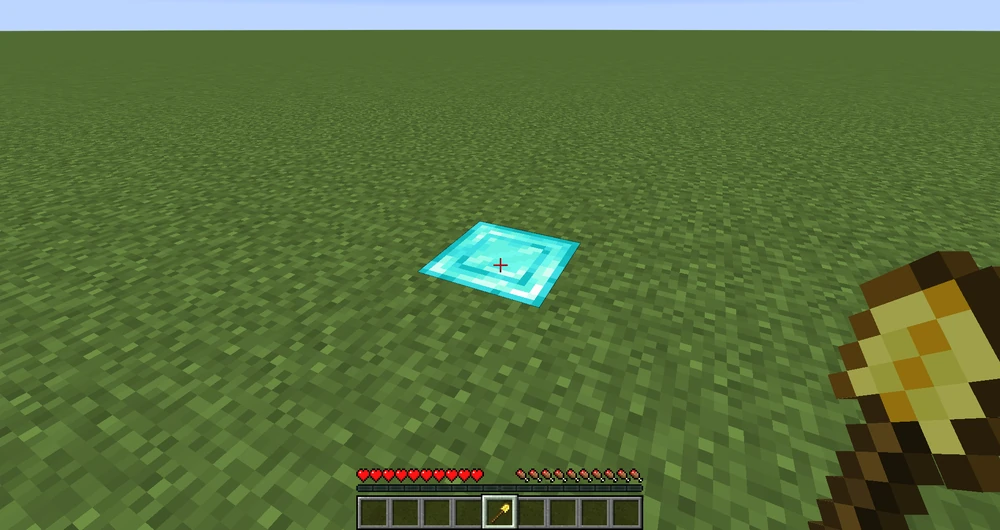
Step Two: While continuing to hold the [item:Golden Shovel:14] in your hand, walk over to the spot you want the second corner of your claim and Right Click it. Note that claims have to be over 100 square blocks in size. (10x10+ or equivalent)
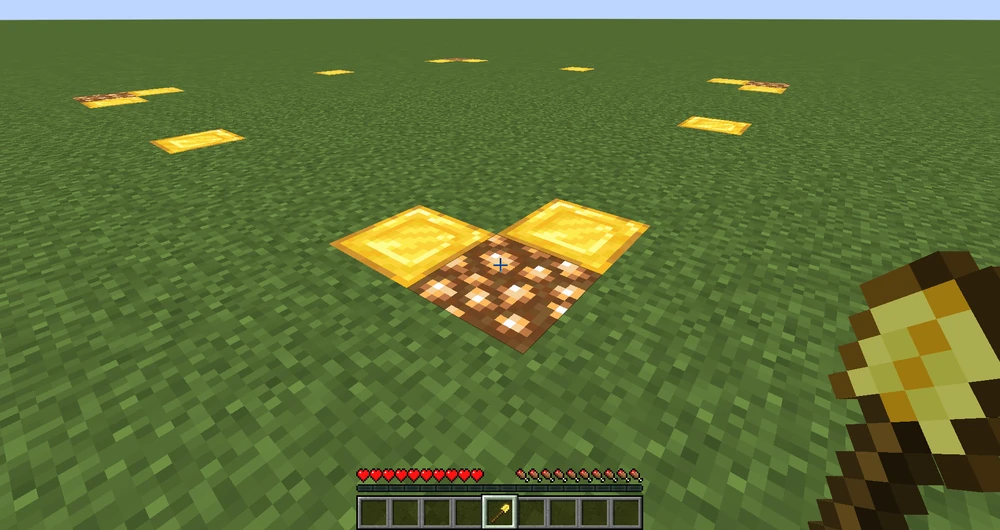
Trusting Players
By default, nobody will be able to build or do anything on your claim. If you want to add someone to a claim, however, there's a set of tools you can use to do so giving various levels of access.
- Access Trust - Lets the player interact with buttons, levers and doors and set a home with /sethome, but not access containers and chests. [command:accesstrust player]
- Container Trust - Lets the player use chests and containers, from hoppers and droppers to shulkers and furnaces, as well all permissions from access trust. [command:containertrust player]
- Build Trust - Lets the player place and break things inside the claim, as well as all permissions from container and access trust. [command:trust player]
- Permission Trust - Lets the player trust other players to the claim. However, this is separate from other trust levels. Players with permission trust can only trust other players to their level of trust (e.g: If a player has container trust and permission trust, then the player is able to give other players container trust but not build Trust). Players with permission trust are not able to give other players permission trust. [command:permissiontrust player]
On the flip-side, you can remove a player from the trust list using the [command:untrust player] command.
Another handy command is [command:trustlist], which lets players with permission trust and the claim owner view a list of everyone with permissions on a claim.
Finally, the claim owner can add the public to the different permission levels. Replace the "player" on any of the trust commands with the word "public"/"all"/"everyone" to do so. Of course, you can also use [command:untrust public] to remove the public from the different trust levels. Note that the public cannot have permission trust.
Configuring Claims
Abandoning Claims
You can do [command:unclaim] or [command:abandonclaim] while standing in a claim to remove it. You will then be given back the claim blocks to use with other claims. In addition, you can use [command:abandonallclaims] to abandon all of your claims and regain all of your claim blocks back for use. You can also abandon all of your claims by typing /abandonclaim or [command:unclaim] while standing outside of a claim.
Viewing Claims
While holding a [item:stick] in your hand, you can right click within a claim to view the claim borders marked in temporary [item:Gold Block]s and [item:Glowstone]. Any subclaims within the claim will also appear marked in temporary [item:Iron Block]s and [item:White Wool].
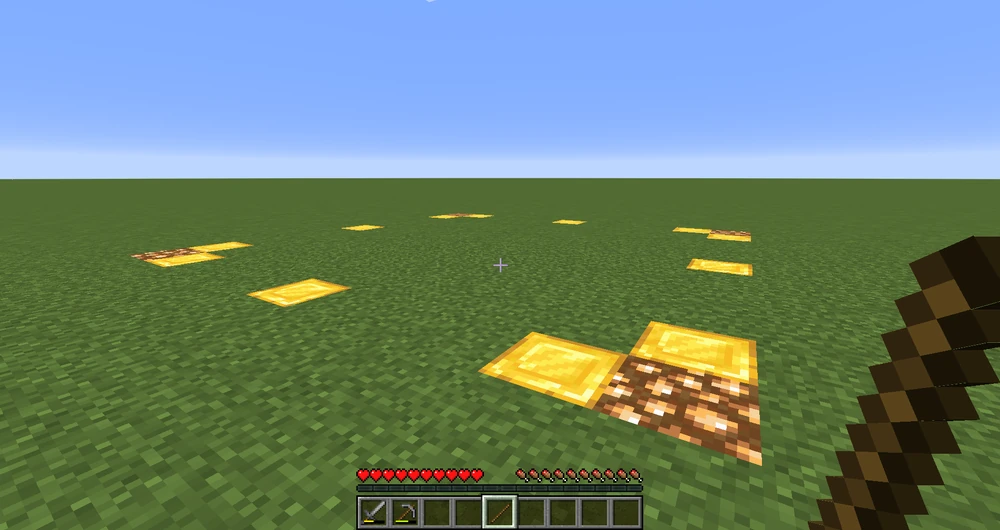 (Simply right click inside a claim with a stick to view its borders.)
You can also view a list of all of your claims and their co-ordinates using the [command:claimslist] command.
Resizing Claims
Simply right click one of the golden corners of a claim to resize it. If you make the claim larger, you will need to have the right amount of claim blocks to support the expansion.
Claims Explosions
It's possible to enable explosions within a claim by standing in it and typing [command:claimexplosions].
Subdividing Claims
By Subdividing Claims, you are able to create subclaims within a regular "top-level" claim you made as demonstrated in the "Creating Claims" section. This is useful in particular for creating plots in a town, as you are able to trust people in a subclaim without them being trusted in the larger claim. Unlike regular claims, there's no size limitations on subclaims and so they can be as small as one block; subclaims do not take up claim blocks.
Apart from that, Subclaims act like regular claims. They are marked out by temporary [item:Iron Block] and [item:White Wool] blocks. Do note though, that players trusted in the top level claim will retain their permissions inside any subclaims. Only the owner of the main top level claim can create subclaims within it.
[youtube:I3FLCFam5LI]