
Guide
Artmap
Before Artmap came map art. This is where you place blocks in a 128x128 area to make a design, and then create a map of the area. This essentially creates pixel art. Artmap is a plugin that removes the block aspect, allowing you to create 32x32 pixel art using vanilla map colours as a palette. You just hold a dye and click on canvas. This page will help you unleash your inner artist! Use [command:artmap] to open the GUI and get started.
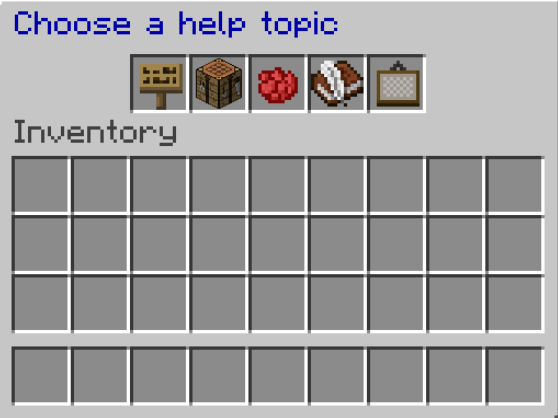
Tools
First, you need the below tools.
| [item:Feather] | Click on a colour on the canvas to lighten it once. Functions like normal dye. |
| [item:Coal] | Click on a colour on the canvas to darken it up to two times. Functions like normal dye. |
| [item:Sponge] | A dropper tool that picks up the colour you click on. It will name the dye in chat. With the sponge, right click to colour a single pixel or hold right click and drag to draw in lines. |
| [item:Bucket] | Used to fill in an enclosed area. Hold the dye in your off hand and double click the area with a bucket to fill it. Double right click to undo. Works with sponges. |
| [item:Compass] | Hold and left click to flip the canvas horizontally (left to right). Right click to flip it vertically (upside down). |
Dyes
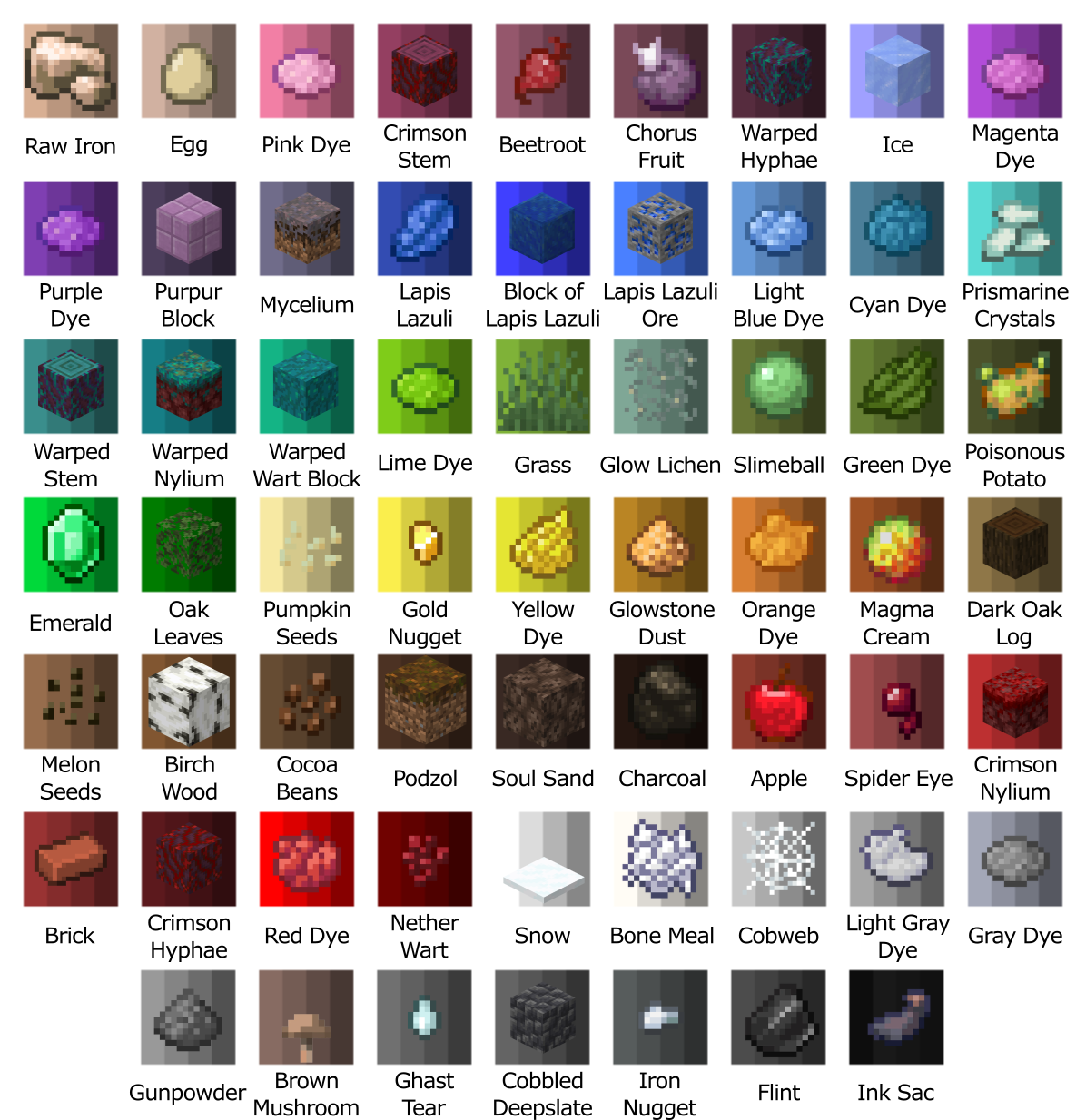
Next, you’ll need dyes. These are different from vanilla dyes as there are 61 colours you can paint with. Each colour can be made lighter once and darker twice, resulting in 4 shades per colour. Below are all the dye blocks and their colours
Getting Started
Finally, you need an easel and canvases! The recipes are below and also in [command:artmap]
Easel
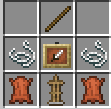
Items needed:
- 1x [item:stick]
- 2x [item:string]
- 2x [item:leather]
- 1x [item:Armor Stand]
- 1x [item:Item Frame]
Canvas
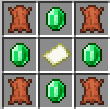
Items needed:
- 4x [item:leather]
- 4x [item:emerald]
- 1x [item:empty map]
Place an easel like a normal block, and then right click while holding a canvas to place it. Right click to sit at it and begin painting. To use a dye, hold it and left click to colour a single pixel. Right click and drag to paint in lines. You can exit the easel by crouching.
If you would like to take a break from painting, you can exit the easel by pressing crouch. Your art will save and will remain there on the easel for you to get back to at a later date.
Warning: To break an easel you can crouch and right click it, but keep in mind this may destroy any art you have on the easel. It will NOT save.
Once you're done being Picasso, you're going to want to save your art.
Save
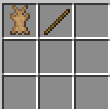
Items needed:
- 1x [item:stick]
- 1x [item:rabbit hide]
Using the Save Tool, right click on your canvas. A prompt will pop up to name your item after right clicking.
Finished Artworks & Copying
Now that you've finished you can view your art under [command:artmap] and selecting the artworks category. You can view other players artworks here as well.
To copy your artwork for reselling you need to place it in a crafting table with some empty maps. If you lose your art work you can copy it by opening the [command:artmap] menu, clicking the painting icon, then click the first head in the menu which is your own. You will now have the option to view, copy, delete, and rename the art. Right clicking the art icon with empty maps in your inventory will copy the art.